

Inbox
The Inbox is a space for tracking and managing updates to work items you're connected with. Whether you're assigned to a work item, its creator, mentioned in a discussion, or subscribed to its updates, you'll find everything here. It's where all your in-app notifications live.
The inbox has two tabs: All and Mentions. Each tracks its own unread count. The sidebar icon shows a red dot when either tab has unread notifications.
Where to find Inbox
Click the Notifications icon in the top right of the screen to open the inbox. Clicking a notification opens the work item in a panel on the right — you stay in the inbox.
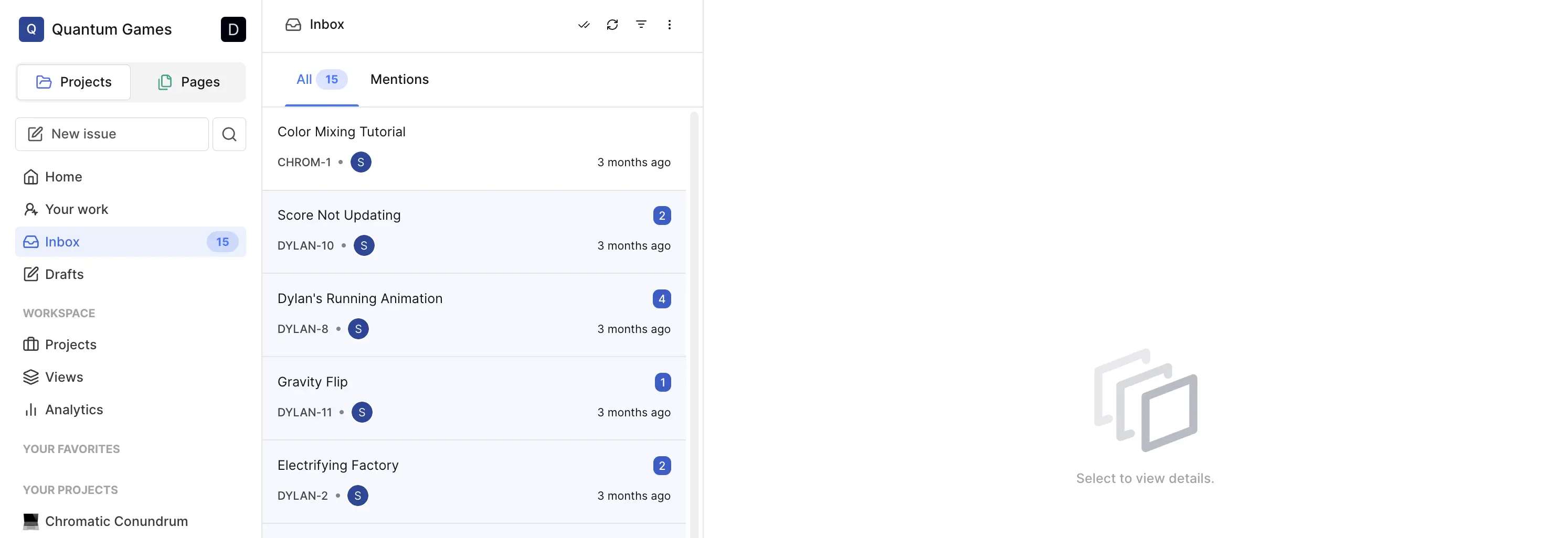
Use the All tab for everything except @-mentions — state changes, field updates, comments, assignments. Use the Mentions tab to see only notifications where someone @-tagged you.
Email notifications
All inbox notifications are also sent to your email by default. You can customize your email notification preferences in Profile Settings.
Manage notifications in your inbox
Hover over any notification card to reveal three action buttons:
- Mark read / unread — toggles the unread indicator
- Archive — removes it from your default view; you can still find archived notifications by turning on Show archived in the menu
- Snooze — hides it until a time you choose
To clear everything at once, use Mark all as read in the inbox header.
Filter your notifications
Use the filter icon to narrow by type — you can combine multiple filters:
- Assigned to me — notifications for work items where you're an assignee
- Created by me — notifications for work items you created
- Subscribed by me — notifications for items you're subscribed to but didn't create or get assigned to
Use the three-dot menu to toggle display options — only one can be active at a time:
- Show unread — only unread notifications
- Show archived — only archived notifications
- Show snoozed — only snoozed notifications, including ones whose snooze time has already passed
Active filters appear as tags below the tab bar. Remove them individually or clear all at once.
Notification card content
Each notification card shows:
- Who did it — the actor's avatar (or a bell icon for due date reminders)
- What they did — a one-line summary, e.g. "Alice added assignee Bob" or "Carol set due date to Jan 15"
- Which work item — the project identifier and sequence number, and the work item name
- When — a relative timestamp, e.g. "3 hours ago"
- Unread dot — a small coloured dot on the left edge when unread
- Snoozed indicator — if snoozed, the timestamp is replaced with "Till {date}, {time}"
Snooze options
| Option | Hides until |
|---|---|
| 1 day | Tomorrow at the same time |
| 3 days | Three days from now |
| 5 days | Five days from now |
| 1 week | One week from now |
| 2 weeks | Two weeks from now |
| Custom | A date and time you pick |
Stacked notifications Pro
Notifications are grouped by work item. Instead of one card per event, you get one card per work item covering all the changes to it.
The stacked card shows:
- The work item name and identifier
- Avatars of everyone who made changes
- An unread count badge for the group
- The time of the most recent notification
Hovering over a stacked card opens a preview showing all the individual changes inside it — each one with the actor, what changed, and when.
Clicking a stacked card marks all grouped notifications as read and, in full-page view, opens the work item with the relevant activity items scrolled into view and highlighted. The highlight fades after 5 seconds.
Actions on a stacked card — read/unread, archive, snooze — apply to all notifications in the group at once.